How to Reduce GCE Machine Overprovisioning (and Save 40%+ Resource Waste)
Csaba Kassai
7 min read

Most teams overprovision their Google Compute Engine instances—often by 40% or more. The fix? Right-size your machine types based on actual utilization data, switch to more cost-effective families when appropriate, and tune your autoscaler configurations. In this guide, you’ll learn how to identify overprovisioning, choose the optimal machine type for your workload, and implement changes safely.
Why is machine type selection so critical?
Machine types on the Google Compute Engine determine how much vCPU and memory you reserve and pay for—whether your workloads use them or not. Choose the wrong type, and you’ll end up paying for idle capacity at scale. Choosing the right machine type on Google Cloud is one of the highest‑leverage decisions you’ll have to make, directly impacting cost and performance.
Under‑utilization is extremely common. Across real‑world environments, VMs routinely run well below their provisioned vCPU and RAM, and autoscaled groups often use shapes that don’t match workload characteristics. This typically starts when developers set initial specs with a large safety buffer to avoid performance issues, then never revisit them as workloads evolve. The result: wasted capacity and unnecessary spend.
Our own data from customer use cases show that, on average, about 41% of CPU and 53% of memory capacity goes unused when we calculate actual needs using the past 30 days’ maximum utilization plus a 10% safety buffer. That translates directly into unnecessary spend at scale.
Teams that systematically right-size their instances typically achieve a 10-20% reduction in overall GCE costs, depending on how extensively they address overprovisioning across their fleet.
What machine types are available, and how do they differ?
Google Cloud offers many families and shapes, each with different cost/performance profiles:
- General purpose: C4, C4D, N4, N4D, N2, N2D (AMD), C3, C3D, E2, Tau T2D, legacy N1
- Storage-optimized: Z3
- Compute‑optimized: C2 (Intel), C2D (AMD), H4D (AMD)
- Memory‑optimized: M* families, X4
- Accelerator-optimized: A4X
- Custom shapes: mix your own vCPU and RAM where supported
See Google’s documentation for a comparison of machine series.
Note: Resource-based commitments are based on specific machine types. Be cautious about changing machine type across families: if you’re under a resource-based commitment, it might not make sense to change until the commitment expires, since you’ll have to pay for your whole commitment period regardless of whether you are using it or not.
Picking the best fit requires balancing utilization data, price points, and the right family. You may want to consider using AMD-based machines for higher performance at a lower cost. Understanding your options is the first step—next, you need to know which optimization strategy applies to your specific setup.
The key optimization problems to solve
The approach you take depends on whether you’re optimizing standalone VMs or managed instance groups. Each has distinct challenges and opportunities.
How to right-size standalone instances on GCE?
For single VMs, the goal is to align vCPU and memory with observed peaks plus a sensible safety buffer. Here’s the process you’ll follow:
- Collect utilization data for CPU and memory. CPU metrics are available by default; memory requires installing Google’s Ops Agent to expose metrics.
- Use a conservative rule of thumb (e.g., peak over 30 days plus a 10% buffer) to size the next machine type or custom shape.
- Consider switching families (e.g. N2 → N2D) for additional savings without performance loss.
The key is being methodical: gather real data, apply a safety buffer, and choose the most cost-effective family that meets your needs. For more details on the methodology and trade-offs, see this comparison of different rightsizing approaches.
How to optimize managed instance groups (MIGs) on GCE?
Autoscaled groups add complexity: the autoscaler reacts to a metric (often CPU), but your workload might be memory‑bound or vice versa. If the chosen machine type’s vCPU:RAM ratio is mismatched, you either:
- Scale out earlier than needed (too few vCPUs per instance), or
- Pay for unused memory (too much RAM for the CPU you need), or the opposite
Here’s what to do:
- If you are CPU‑bound, try *-highcpu shapes or smaller vCPU counts per instance.
- If you are memory‑bound, try *-highmem shapes or increase RAM per vCPU.
- For tight fits, use custom shapes to dial in the exact ratio.
- Re‑evaluate the autoscaler target (e.g. target CPU utilization) after changing shape.
Adjusting the ratio reduces per-instance cost and improves scaling behavior, often yielding large aggregate savings across your autoscaling fleet.
How to change machine types on GCE?
Once you’ve identified the right machine type, implementation is straightforward but requires some care to avoid downtime.
Changing a single VM in the Console
- Stop the instance.
- Open the instance → Edit → Machine configuration.
- Pick a new machine type (or custom shape) and save.
- Start the instance.
Important: Changing machine type requires the VM to be stopped, so plan for a maintenance window.
Timing matters: Avoid changing machine types too frequently. Each change requires downtime for single VMs and a rolling update for MIGs. Schedule changes during maintenance windows and act when savings are material (e.g. >10–15% improvement or when utilization has clearly shifted). The goal is meaningful optimization without operational churn.
Changing a single VM with gcloud
gcloud compute instances stop INSTANCE_NAME --zone=ZONE
gcloud compute instances set-machine-type INSTANCE_NAME \
  --zone=ZONE \
  --machine-type=n2d-standard-4
gcloud compute instances start INSTANCE_NAME --zone=ZONE
Custom shapes example (where supported):
gcloud compute instances set-machine-type INSTANCE_NAME \
  --zone=ZONE \
  --custom-cpu=4 --custom-memory=20GiB
How to update a managed instance group (MIG)?
MIGs inherit their shape from an instance template. The process involves creating a new template, then rolling it out to the group:
# 1) Create a new instance template with the desired shape
gcloud compute instance-templates create tmpl-n2d-standard-4 \
  --machine-type=n2d-standard-4 \
  --image-family=debian-12 --image-project=debian-cloud

# 2) Point the MIG to the new template
gcloud compute instance-groups managed set-instance-template MIG_NAME \
  --region=REGION \
  --template=tmpl-n2d-standard-4

# 3) Start a rolling update (zero-downtime with surge/unavailable tuned to your SLOs)
gcloud compute instance-groups managed rolling-action start-update MIG_NAME \
  --region=REGION \
  --version=template=tmpl-n2d-standard-4 \
  --max-surge=1 --max-unavailable=0
For custom shapes in MIGs, create the template with —custom-cpu and —custom-memory instead of —machine-type.
What else can you do to maximize savings?
Beyond basic rightsizing, there are additional optimization strategies worth exploring:
- AMD-based families (N2D, C3D) typically cost ~13% less and offer a 20% performance improvement over Intel equivalents. See our blog post: AMD vs Intel on GCP and the Ninja Van case study for a real-life use case
- Choose your rightsizing approach carefully. GCP’s own GCE rightsizing recommendations often leave savings on the table since they don’t consider other machine series. Compare that against Rabbit’s recommendations, which in our experience can deliver 3.4x more savings compared to Google native ones. Read more in this post: Rightsizing comparison: Rabbit vs. Google Recommender
Want a data-driven view of your optimization opportunities?
Manual rightsizing works, but it’s time-consuming and requires continuous vigilance as workloads evolve. If you want a comprehensive, data-driven view of where you’re over- or under-provisioned, and what specifically to change, optimization platforms can help.
Here’s a screenshot from one such platform, Rabbit, showing recommendations to use other machine types, and the potential savings:
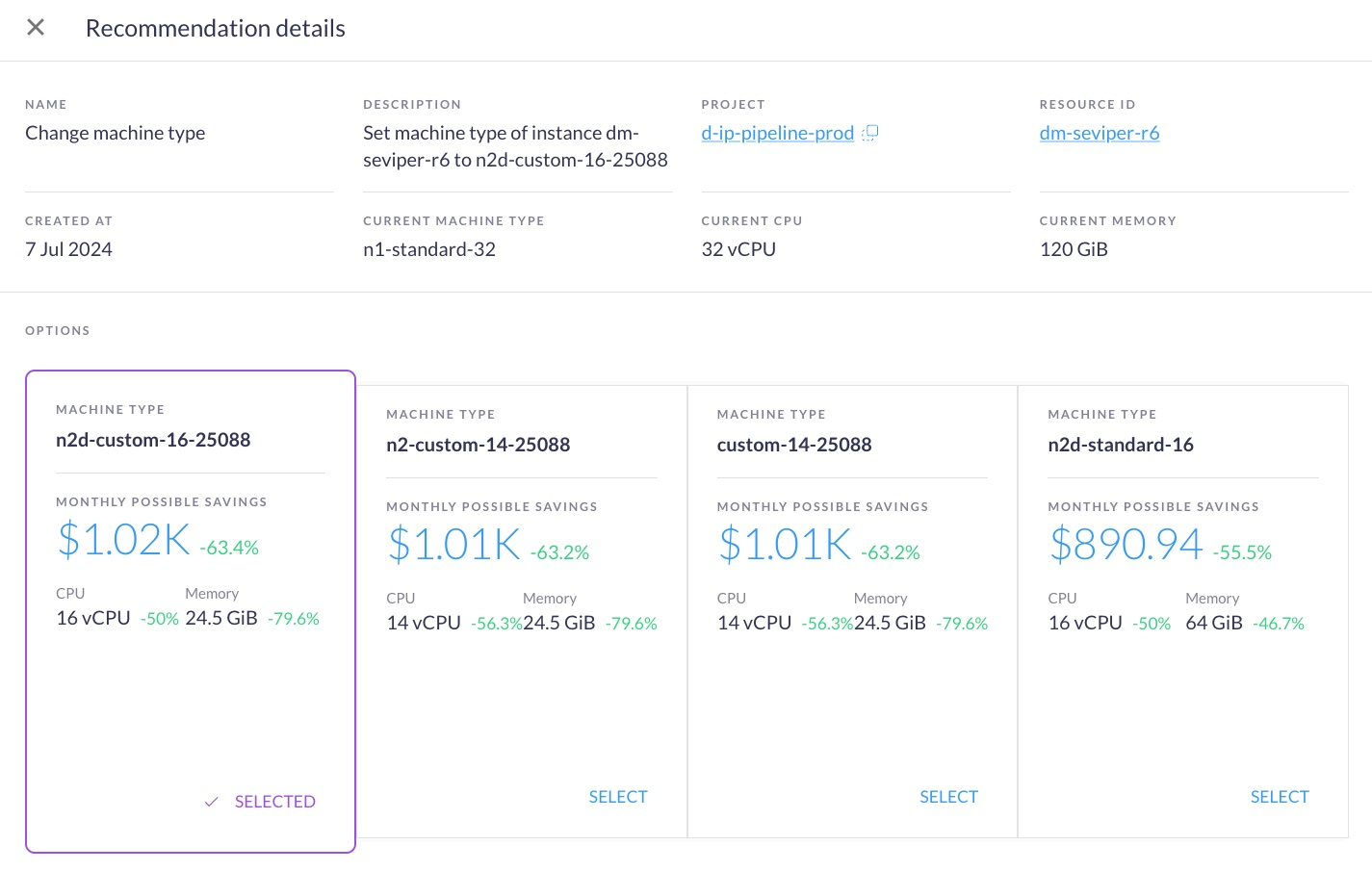
Rabbit analyzes 30-day utilization across your fleet, proposes safe machine type changes across families, and estimates savings before you make any changes. Teams using Rabbit’s recommendations typically achieve a 10-20% cost reduction in overall costs, with proactive alerts when new optimization opportunities emerge.
Start a free trial of Rabbit or contact us to gain insights into your specific optimization opportunities.